Connect your domain to DNS Doctor monitoring
The free scan is a one-off snapshot. Monitoring keeps watching after the scan: DNS Doctor re-scans your domain every day, ingests your DMARC aggregate reports, and warns you the moment a record drifts or a new sender appears. (Once a domain is enforcing, a new sender that is authenticating correctly is logged to the dashboard rather than emailed — at p=reject that traffic is already being handled for you.) This guide walks the whole setup end to end — it takes about ten minutes, most of which is waiting for one DNS record to propagate.
Nothing here changes your DNS for you. DNS Doctor only ever reads your records and hands you the exact string to publish; you paste it in yourself. That is deliberate — a wrong SPF or DMARC record still parses as valid and fails silently, so you approve and publish every change.
Create an account
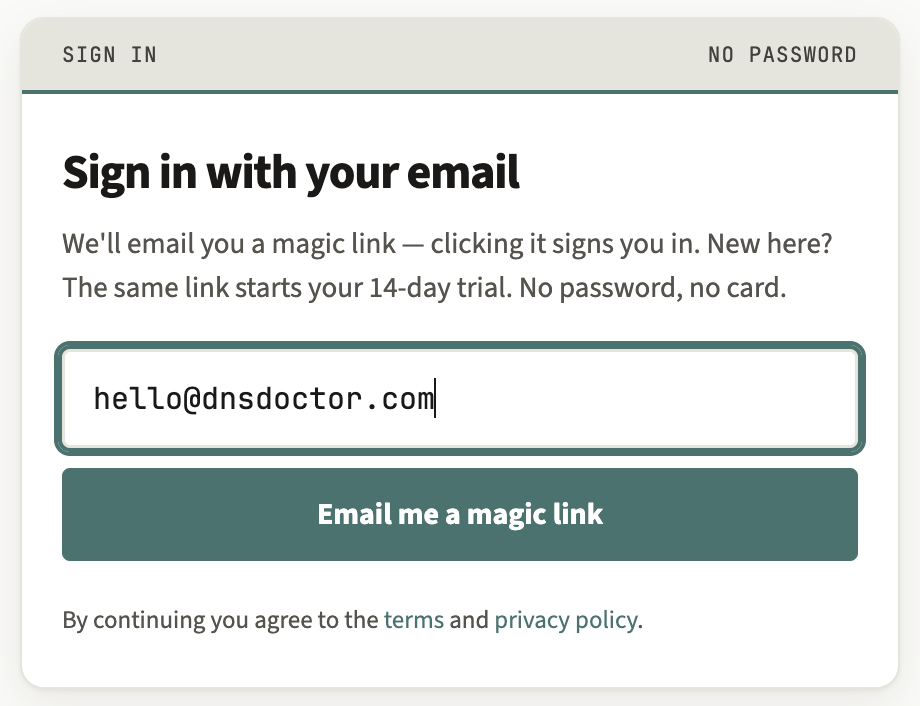
Monitoring starts with a 14-day trial — no card required. Go to the sign-in page and enter your email. There is no separate "sign up" step: signing in is signing up. If it is your first time, entering your email creates the account; if you are returning, the same box logs you in.
We email you a single-use magic link — there is no password to set or forget. Open the link and you land on your dashboard.
Add the domain
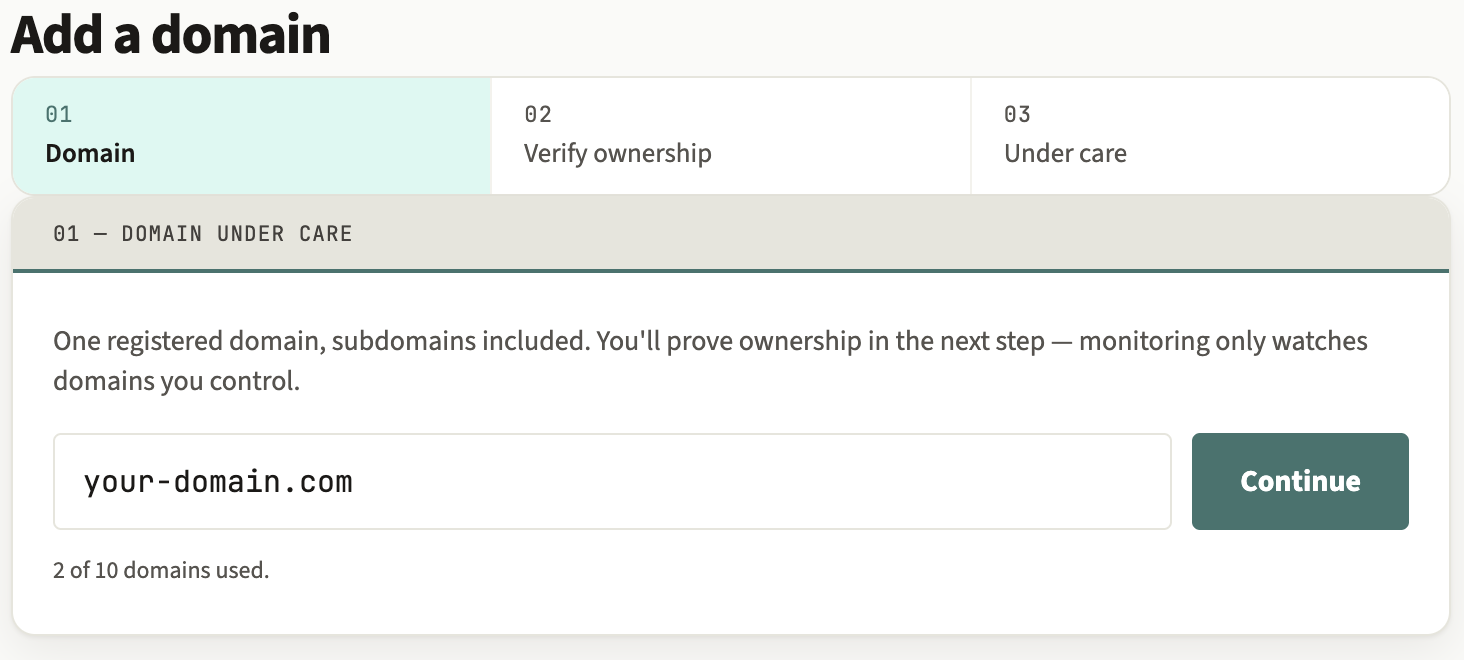
On the dashboard, start the add-domain wizard and type the domain you want to watch — for example example.com. The plan covers up to 10 domains; add them one at a time through the same three-step wizard — 01 Domain, 02 Verify ownership, 03 Under care.
Prove you own it
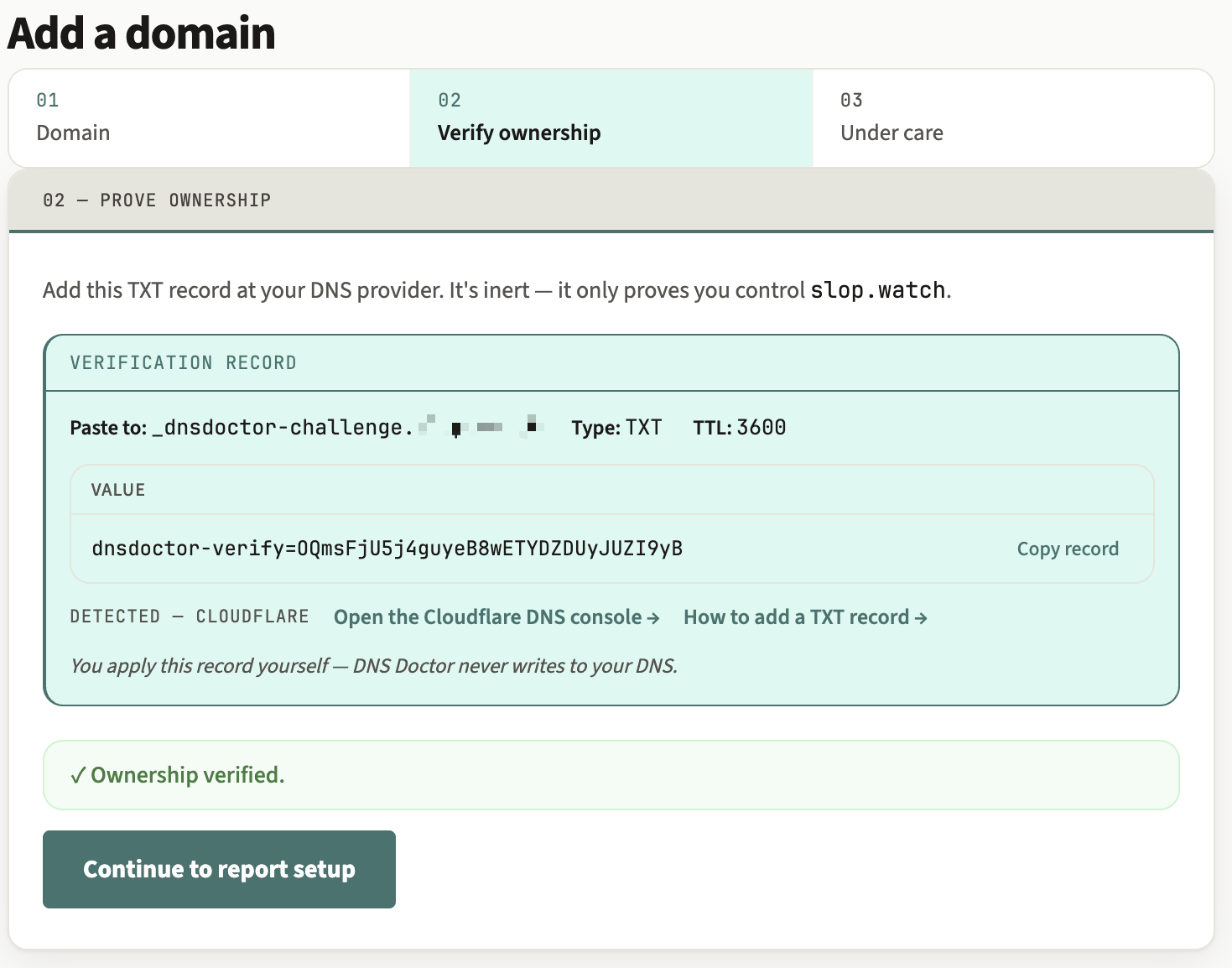
Before we monitor a domain, you prove you control its DNS. The wizard shows a TXT record to publish — a host and a value, unique to your account. Add it wherever your DNS is hosted; our TXT-record guide covers the most common providers if you are unsure where that is.
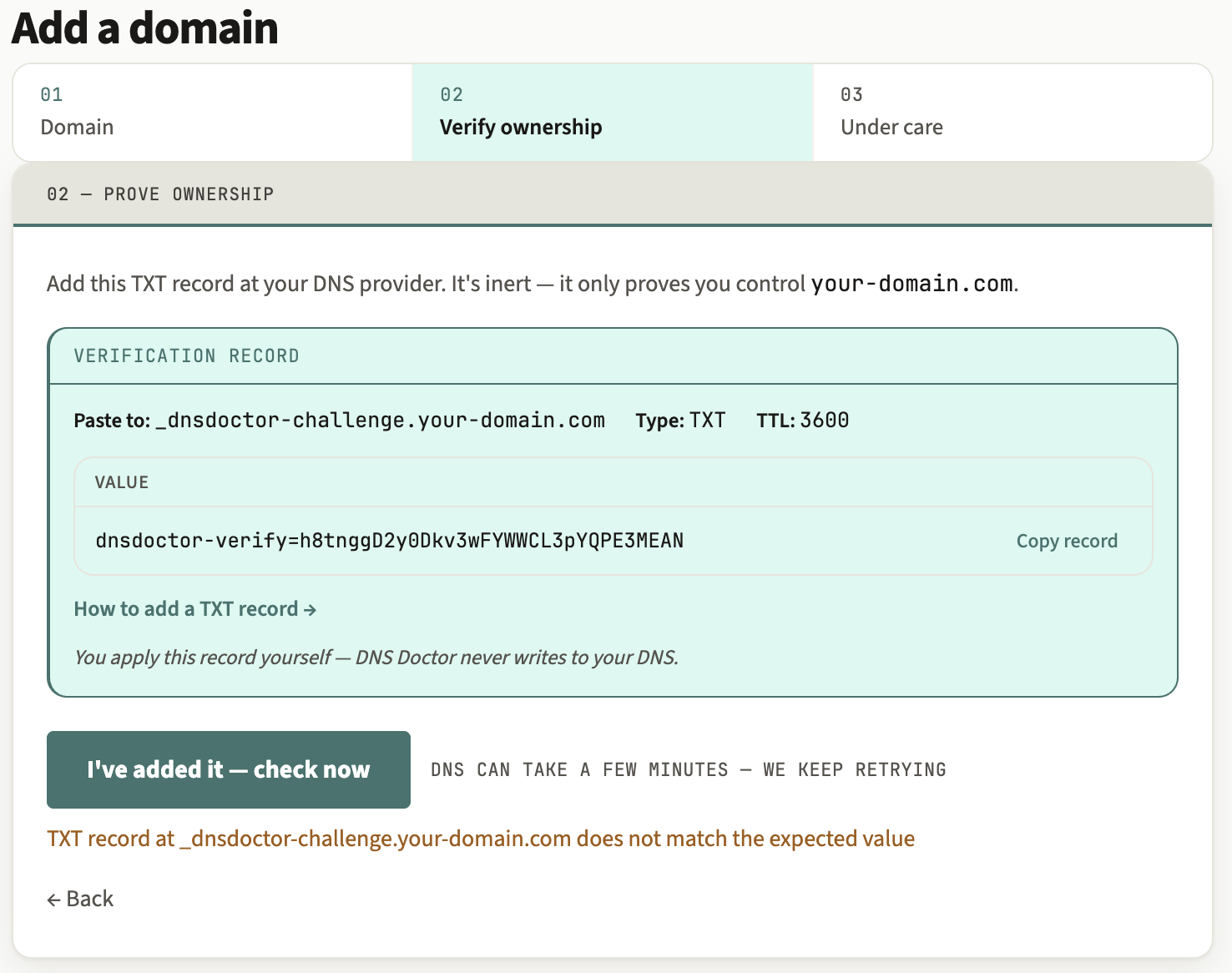
Once it is published, click check again. If the record has not propagated yet, or the value does not match, the wizard tells you why in a plain reason line rather than a bare failure — "record not found yet", "found, but the value doesn't match" — so you know whether to wait or to fix the paste. New records usually resolve within a minute; a slow provider can stretch that toward an hour.
Publish the reporting record
Verifying ownership unlocks your reporting address — a unique inbox at rua.dnsdoctor.dev that receives your domain's DMARC aggregate reports. The wizard shows the exact DMARC record to publish, with the rua= tag pointing at that address. If your domain already has a DMARC record, we merge the reporting address into it and preserve your existing tags; if it has none, we give you a safe p=none record to start from.
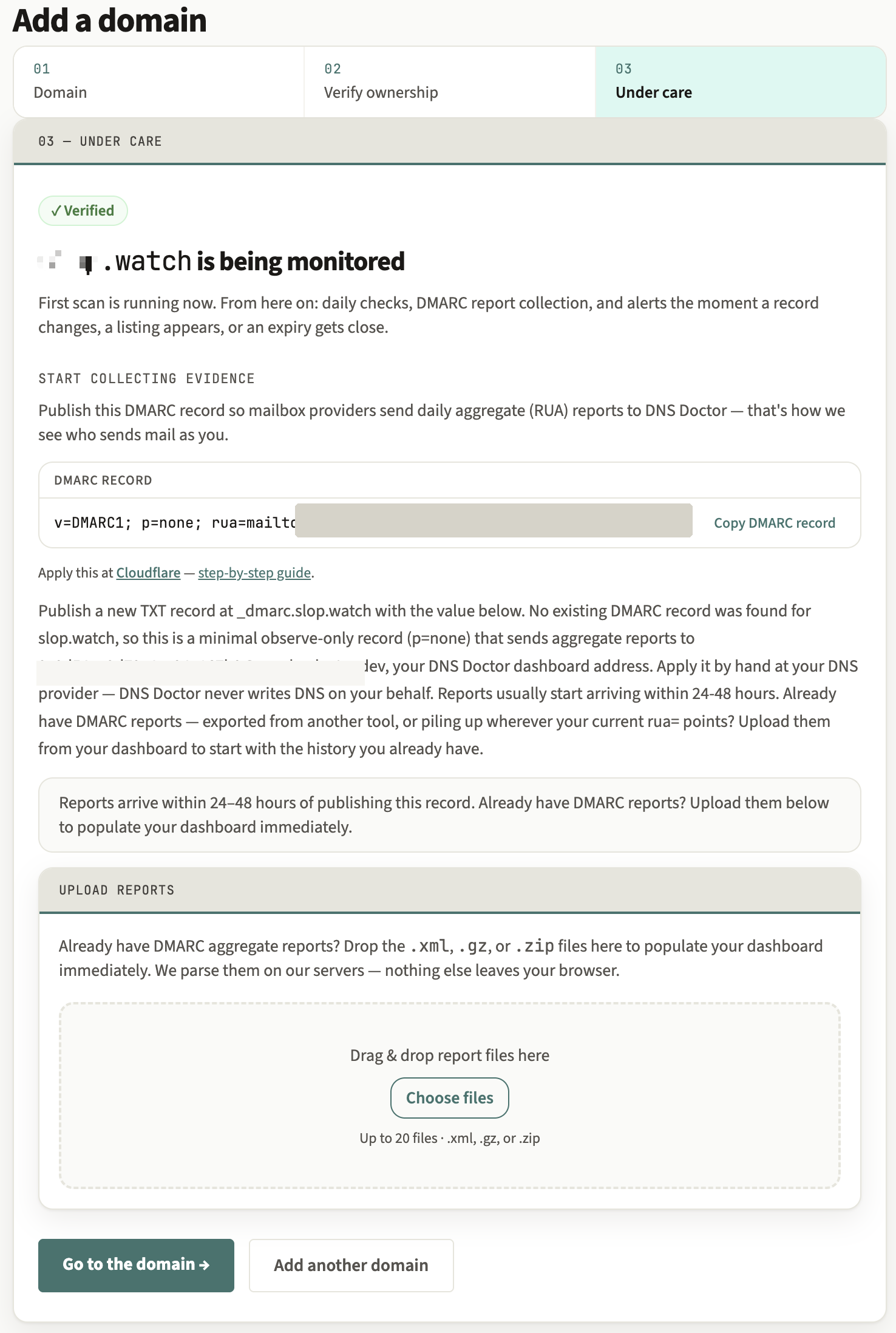
Publish that TXT record the same way you published the ownership one. Reporting servers — Google, Microsoft, Yahoo and many others — start sending aggregate reports within 24 to 48 hours. For what those reports contain and why they matter, see why monitor DMARC reports.
Backfill reports you already have
If you have been collecting DMARC reports already — piling up gzip or zip attachments in a mailbox, or exported from another tool — you do not have to wait a day or two for fresh data. Upload them straight from the wizard and your dashboard populates immediately: every sender, its volume, and its alignment rate, drawn from history you already own.
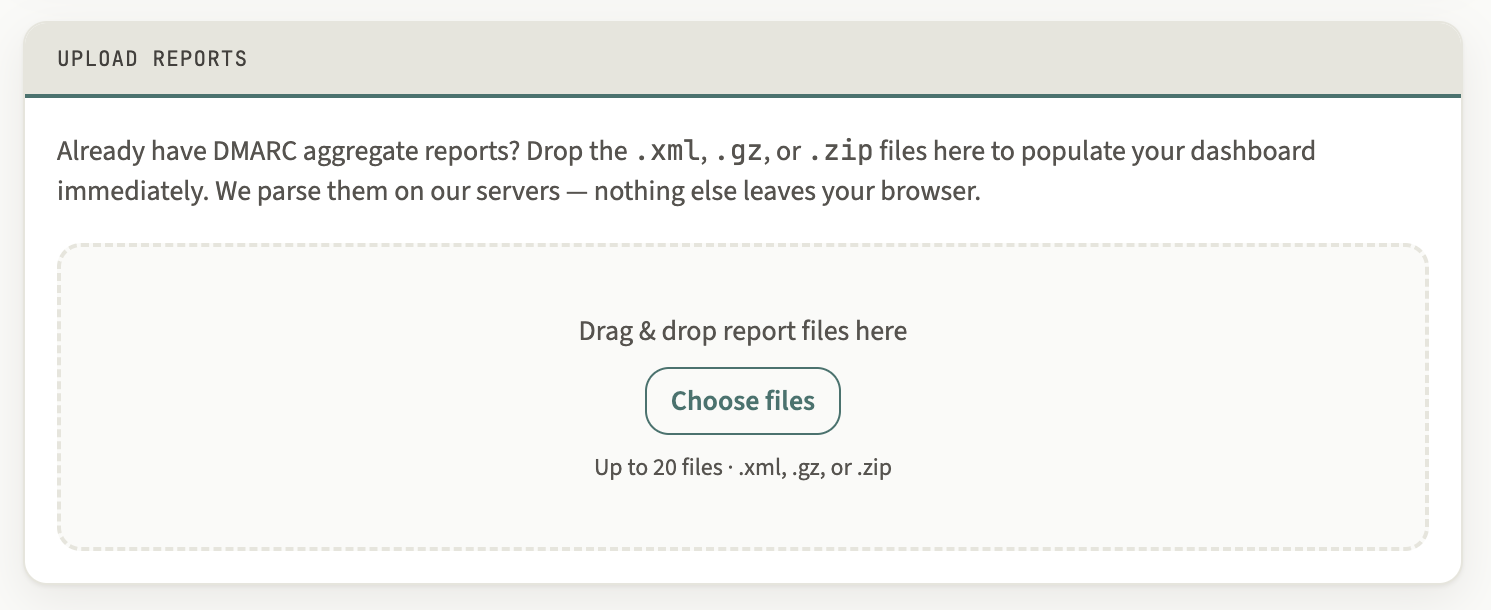
The upload runs the same parsing DNS Doctor uses for live reports; it stores nothing but the aggregate figures, and it does not raise "new sender" alerts (historical backfill is not a change on a live domain).
Your first scan and diagnosis
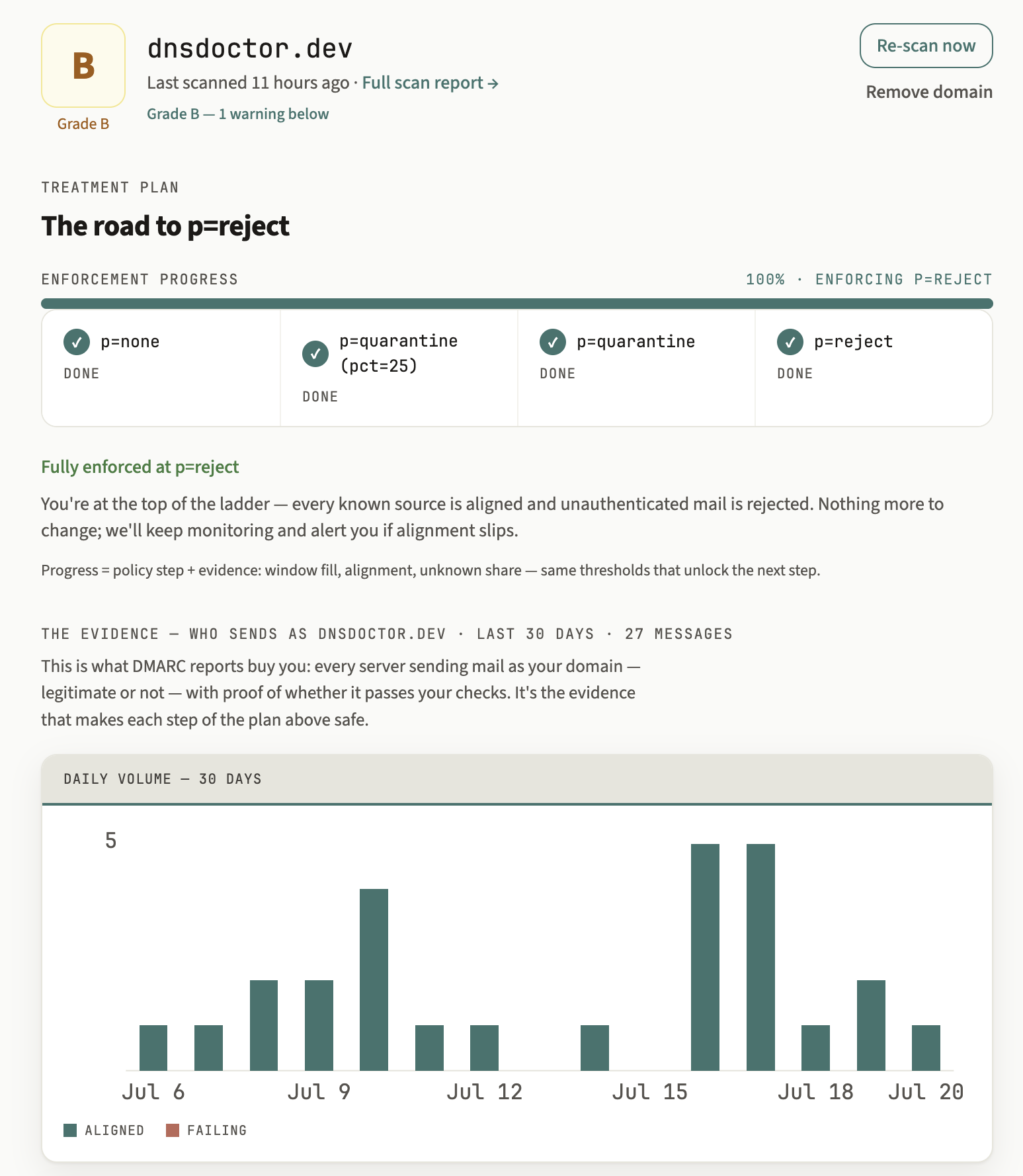
The 03 Under care step runs a full scan as it opens, and the domain's dashboard becomes your baseline — a single A–F health grade, the treatment plan showing where you sit on the road to p=reject, and a 30-day chart of who is sending as you. This is the snapshot every daily re-scan compares against.
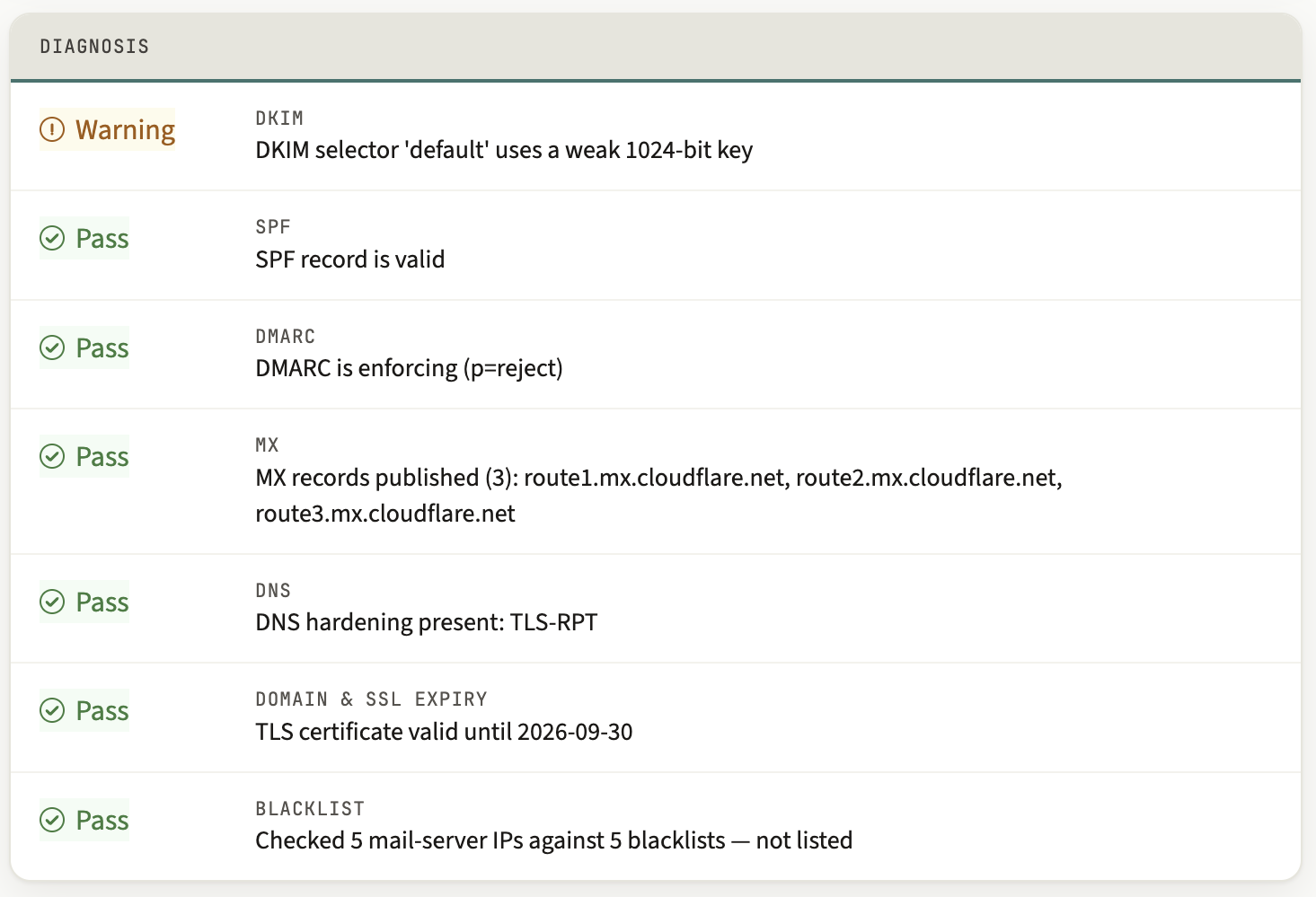
On the domain's dashboard page, the diagnosis card explains why it earned that grade, check by check — the deterministic verdict for each, so a warning or failure tells you exactly what to fix.
What alerts arrive, and when
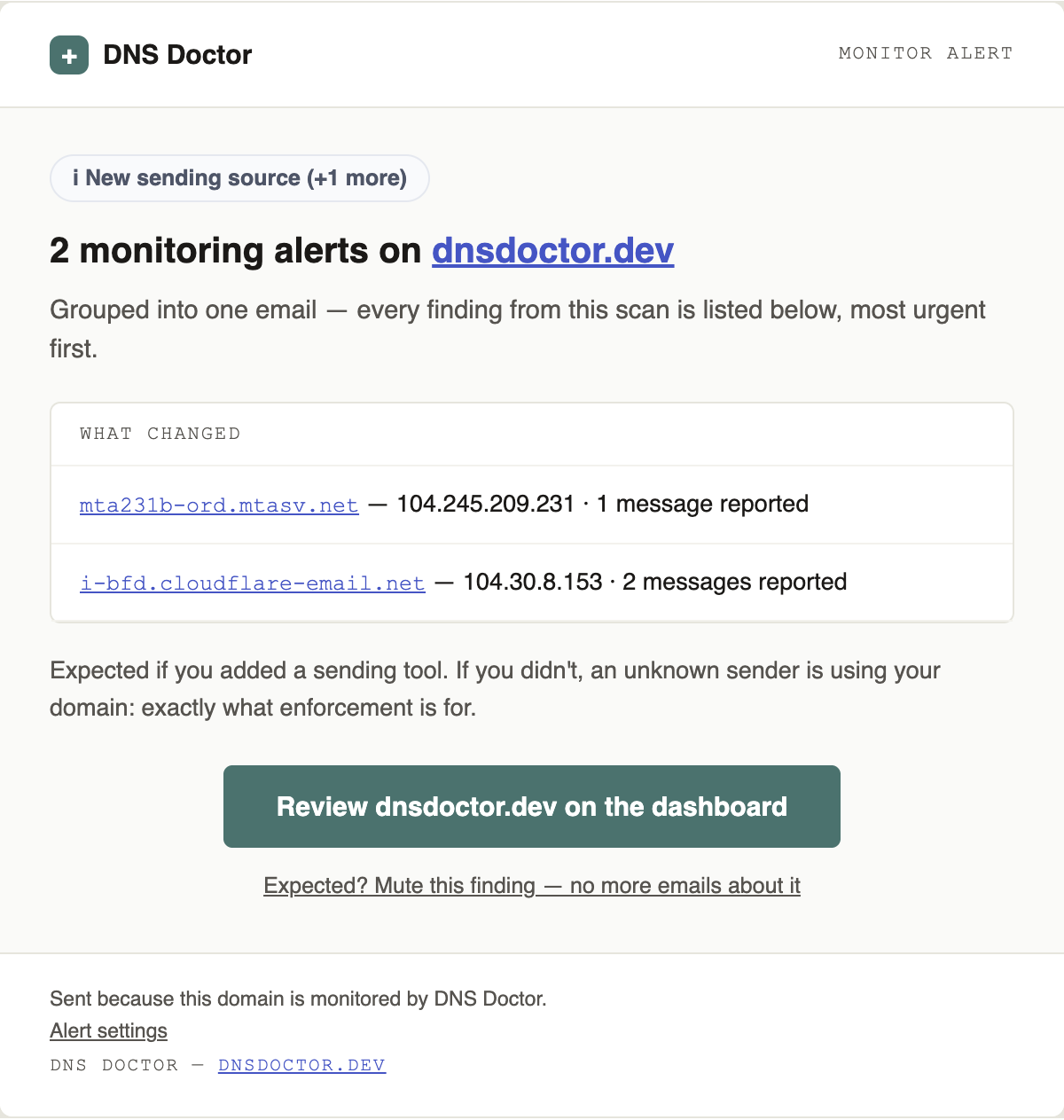
From here it runs itself. Every day DNS Doctor re-scans the domain and reads its new reports. You get an email only when something actually changes: a record drifts from what it was, a domain or certificate is nearing expiry, a check starts failing, or — once you are watching reports — a new source begins sending as your domain. No news means everything is healthy; alerts are deduplicated so a persistent problem does not mail you every day.
Toward enforcement
The point of all this is to reach the day you can safely tighten your DMARC policy from p=none to quarantine and then reject — the staged ladder that stops spoofing. DNS Doctor's readiness engine watches the reports and tells you when it is safe: every known sender aligned at ≥99% of its volume, unaligned volume from unknown senders under 0.5%, across a full 30-day window, re-earned at each step. Until then it holds you at the conservative rung. The DMARC monitoring guide covers what those numbers mean and why each one matters.
Check SPF, DMARC, DKIM, MX, DNS health, blacklists and domain & SSL expiry in one free scan — with the exact record to paste in to fix each problem.