How to add a TXT record to your DNS
A TXT record is a piece of text you attach to a domain name in DNS. It carries no special meaning to the network itself — it exists so that other services can read a value you publish and act on it. SPF policies, DKIM keys, DMARC policies, and domain-ownership checks like DNS Doctor's are all just TXT records.
Adding one is a two-minute job once you know where your DNS is hosted. This guide walks through the most common providers, then covers how to find yours if you are not sure and the handful of mistakes that trip people up.
Where your DNS actually lives
Your DNS is managed wherever your domain's nameservers point — which is not always where you bought the domain. If you moved a domain onto Cloudflare, for example, you edit records in Cloudflare even though the domain is registered elsewhere.
If you are not sure, run a free scan of your domain — the DNS section lists the nameservers currently answering for it. The hostname usually gives the provider away: *.cloudflare.com means Cloudflare, *.registrar-servers.com means Namecheap, *.domaincontrol.com means GoDaddy, *.awsdns-* means Route 53, and so on. Edit the record with whoever those nameservers belong to.
Every provider asks for the same three things: a type (always TXT here), a host (also called Name), and a value (also called Content, Answer, or TXT data). Copy the host and value from the setup screen exactly — the quick sections below only cover where each field lives in each provider's interface.
Cloudflare
- Log in and select the domain from your account home.
- Open DNS → Records in the left sidebar.
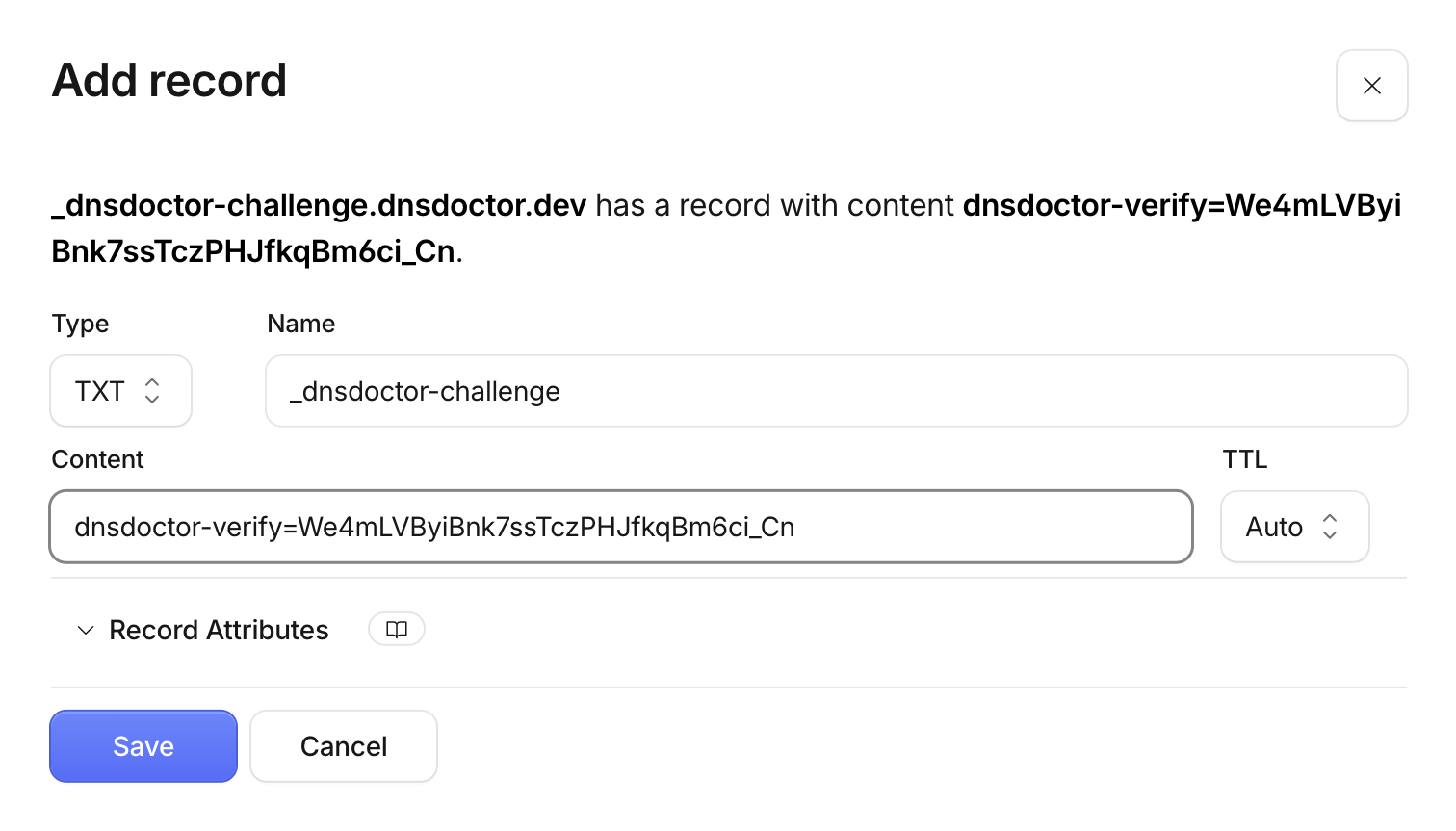
- Click Add record, set Type to
TXT, put the host in Name and the value in Content, and leave TTL on Auto. - Click Save. Cloudflare resolves new records almost immediately.
Namecheap
- From Domain List, click Manage next to the domain.
- Open the Advanced DNS tab.
- Under Host Records, click Add New Record and choose TXT Record. Fill in Host and Value, and leave TTL on Automatic.
- Click the green checkmark to save the row.
Namecheap's own walkthrough, with current screenshots: How do I add TXT/SPF/DKIM/DMARC records.
GoDaddy
- From your Domain Portfolio, select the domain, then open DNS (Manage DNS).
- Click Add New Record.
- Set Type to
TXT, put the host in Name and the value in Value, and leave TTL at the default (1 hour). - Click Save.
GoDaddy's own walkthrough, with current screenshots: Add a TXT record.
Porkbun
- From Domain Management, click Details on the domain, then open the DNS Records editor.
- In the record form, choose TXT as the type.
- Put the host in Host and the value in Answer, leaving TTL at the default.
- Click Add to publish the record.
Porkbun's own walkthrough, with current screenshots: How to edit DNS records.
Amazon Route 53
- In the Route 53 console, open Hosted zones and select the zone for your domain.
- Click Create record.
- Put the host label in Record name, set Record type to
TXT, and paste the value into Value — Route 53 expects it wrapped in double quotes, e.g."your-value-here". Keep Routing policy on Simple. - Click Create records.
AWS's own walkthrough: Creating records by using the Amazon Route 53 console.
Google Cloud DNS
- In the Google Cloud console, open Network Services → Cloud DNS and select your zone.
- Click Add standard to start a new record set.
- Put the host in DNS name, set Resource record type to
TXT, and paste the value into TXT data. - Click Create.
Google's own reference: Cloud DNS record types and management.
Network Solutions
- Sign in to your Network Solutions account, select Domains on the left, then your domain.
- Scroll to Advanced Tools and click Manage next to Advanced DNS Records.
- Click + Add Record and choose TXT. Under Refers to, pick Other Host and put the host in Host Name, then paste the value into TXT Value. Leave TTL at the default.
- Click Add.
Network Solutions' own walkthrough: How to manage DNS and advanced DNS records.
Natro
- Sign in at natro.com (Hesabım), open Alan Adı Yönetimi, then DNS Kayıt Yönetimi.
- Select the domain and click Detaylar.
- In the TXT KAYITLARI section, put the host in the subdomain field and the value in DATA, then click Ekle.
Natro's own walkthrough (in Turkish): Alan adınızı Office 365'e nasıl bağlarsınız?. Its TXT step works the same for any record.
IONOS
- Log in to IONOS and go to Domains & SSL.
- For your domain, click the gear symbol under Actions and select DNS.
- Click Add Record and select TXT under Type. Put the host in Host name and the value in Value, and leave TTL at the default.
- Click Save. The record is live at IONOS right away, and IONOS says it can take up to an hour to show up everywhere else.
Watch out: some IONOS domains come with a _dmarc CNAME already in place, and a TXT record can't share a host with a CNAME. If your record goes at _dmarc, delete that CNAME first: click the gear symbol on its line, select Delete record, then click Delete.
IONOS's own walkthrough: Managing TXT Records.
OVHcloud
- In the OVHcloud Control Panel, go to Web Cloud, then Domain names, select your domain and open the DNS zone tab.
- Click Add an entry above the table and select the TXT type. Pick TXT even for an SPF, DKIM or DMARC value: the SPF, DKIM and DMARC types in the same list build the record from their own form fields instead of taking the value as given.
- Put the host in Subdomain without your domain name, so
_dmarc, not_dmarc.example.com. Leave it empty only when the record belongs on the domain itself. Paste the value into Value and leave TTL onBy default. - Click Add. OVHcloud says a change can take up to 24 hours to propagate fully.
OVHcloud's own walkthrough: How to add a DNS TXT record for a domain name.
If it still isn't verifying
Almost every failed TXT record comes down to one of three things.
The value doesn't match
If a check reports that it found a record but the value is wrong, waiting will not help — the record is published, it is just not the value we asked for. Re-copy the value and paste it again, replacing the old one. A common cause is a partial paste or an autocorrected character.
Extra or missing quotes
Some providers (Route 53 among them) store the value wrapped in double quotes and expect you to type them. Others (Cloudflare, Namecheap) add the quotes for you — so if you paste quotes yourself, the value ends up double-quoted and no longer matches. If your provider's saved record shows ""your-value"", remove the pair you added.
The record is at the wrong host
The host field decides where the record lives. If the setup screen gives a host like _dnsdoctor and you leave it blank (or type @), the record lands at the root of the domain instead — the check looks in one place and the record is in another. Paste the host exactly as given. Note that some providers auto-append the domain to the host you type, so _dnsdoctor becomes _dnsdoctor.example.com on its own; that is expected and correct.
It's just propagation
If the record looks right and the value matches, give it a few minutes. New records usually resolve within a minute, but a slow provider or a long TTL on a previous record can stretch that toward an hour. Use the check again button rather than re-creating the record.
Check SPF, DMARC, DKIM, MX, DNS health, blacklists and domain & SSL expiry in one free scan — with the exact record to paste in to fix each problem.